


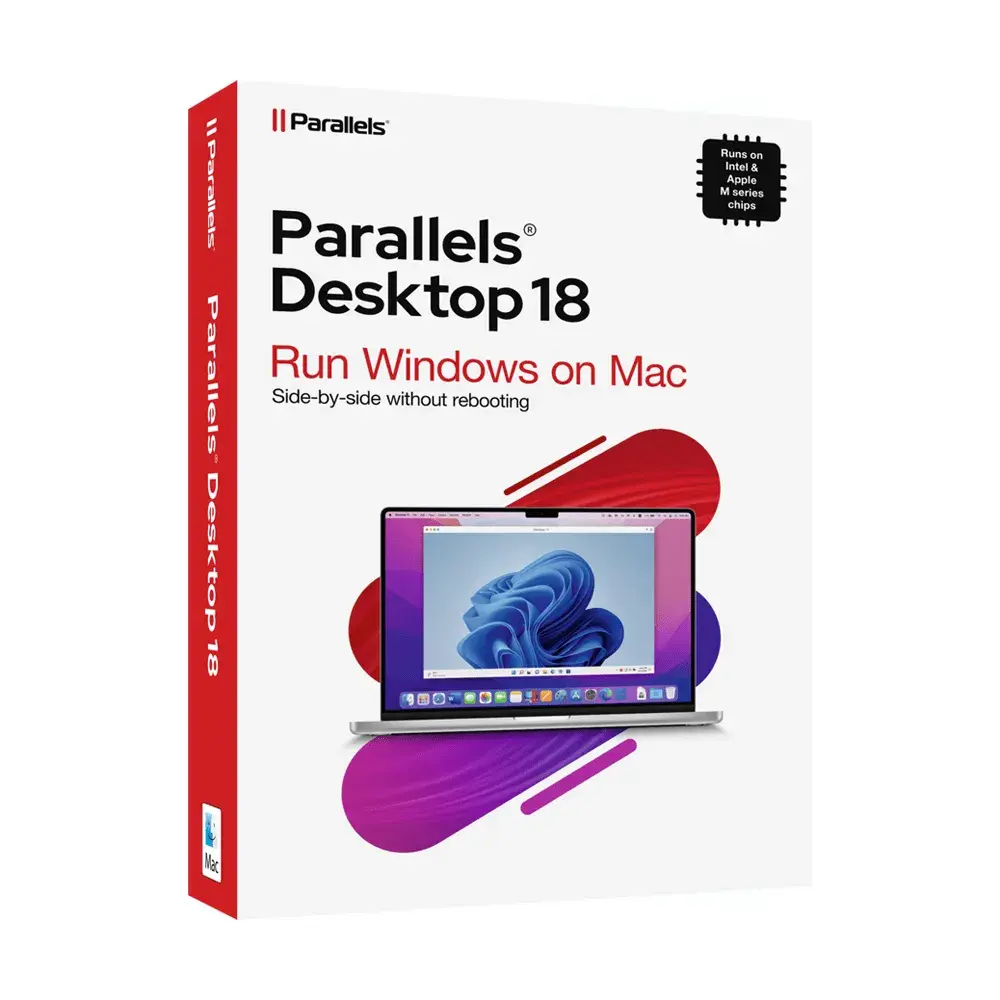

Parallels Desktop 18 Pro for Mac | Overview
Run Windows and macOS simultaneously on a Mac.
Run thousands of Windows apps like Microsoft Office, Internet Explorer, Access, Quicken, QuickBooks, Visual Studio, even graphic intensive games and CAD programs without compromising on performance or rebooting.
Fast, Powerful and Easy
Whether you need to run Windows programs that don’t have Mac versions, or you are making the switch from PC to Mac and need to transfer your data, Parallels Desktop has you covered.
Future Ready
Optimized for the latest Windows 11 updates and macOS Big Sur, with a refreshed design, easier setup and much more. Parallels Desktop continues to stay up to date so you can keep working without interruption—even when a new macOS, Windows or Linux release pops up.
Seamless - Use Windows side-by-side with macOS (no restarting required) on your MacBook, MacBook Pro, iMac, iMac Pro, Mac mini or Mac Pro. Share files and folders, copy and paste images and text & drag and drop files between Mac and Windows applications.
Easy Set-Up - Parallels Desktop automatically detects what you need to get started so you are up and going within minutes! If you need Windows, you’ll be prompted to download and install Windows 11 or use your Boot Camp installation if you have an Intel- based Mac. You may also migrate your Windows PC* or use Linux, like Ubuntu (Intel-based Mac computers only).
Lightning Fast - Graphic and resource-hungry Windows applications run effortlessly without slowing down your Mac. Run the demanding applications such as Microsoft Office, Visual Studio, SQL Server, Microsoft PowerBI, AutoCAD, MetaTrader and a thousand more. Play your favorite classic Windows-Only games on a Mac.
Choose your View - Make Windows invisible while still using its applications in Coherence Mode, or if you’re new to Mac, you can set Windows to occupy your entire screen, so it looks just like it would if you were using a Windows PC.
Parallels Desktop 18 for Mac | Business Edition Subscription
- Office 365 Integration
Allows Word, Excel, or PowerPoint documents in Safari to open in their native Windows Office app. - Work Smarter
Run classic Intel-based (x86) Windows apps on your M series Mac. With more than 200,000 Windows-only apps supported, we have you covered. - Retina Display Support
Smart resizing and independent screen resolutions for separate displays. - One-Click Tuning
Select productivity, games, design, software testing, or development and Parallels Desktop will optimize your VM settings and performance for you. - Instant Access
Launch and access Windows applications right from the Mac Dock. - Save Disk Space Get the most out of your Mac with automatic Disk Space optimization and Free Up Disk Space assistant.
- Volume License Key Unified volume license key, centralized license management and advanced security features are available in Parallels Desktop Business Edition.
- Travel Mode
Extend battery life while away from a power source. - Parallels ToolboxBonus with Subscription!
Over 40 one-touch tools—clean your drive, take screenshots, download a video and more—all with just a single click. - Remote AccessBonus with Subscription!
Remote access to your Mac from any iOS device, Android device or browser with Parallels Access®. - 24/7 Support
Premium 24/7 phone, email and social support after activation.
- Office 365 Integration
Operating System
macOS Ventura 13.0 (when released), macOS Monterey 12.4 or newer, macOS Big Sur 11.6.6 or newer, macOS Catalina 10.15.7 or newer, macOS Mojave 10.14.6 or newer
Processor
Apple M1, M1 Pro, M1 Max, M1 Ultra, and M2 chips, Intel Core 2 Duo, Core i3, Core i5, Core i7, Core i9, Intel Core M or Xeon processor
Storage
600 MB for Parallels Desktop application installation
Graphics
Apple M1, M1 Pro, M1 Max, M1 Ultra, and M2 chips, Intel, AMD Radeon, or NVIDIA graphics cards
Memory
4GB of RAM
*Features that are only available on Mac computers with Intel processors are marked with an asterisk (*).Contact Whirlmarket Sales and Licensing Team through the Chat Option and or Email to get clarity on the License Band and Qty.
Standard Edition
Installation
- Use Sign in with Apple for Parallels account registration and sign-in.
- Download and install Windows automatically in one click.*
- Activate Windows automatically by specifying a license key before installation.
- Use Express Installation to fully automate Windows installation and user account setup.
- Install virtual machines from an ISO image, app, USB, CD, or DVD.
- Select automatically detected operating system installers from Downloads and Desktop folders.
- Use automatic Parallels Tools installation for many operating systems.
- Easily configure Windows for Productivity or Gaming.
- Use Windows from Boot Camp in a virtual machine.
- Import Boot Camp into a standalone virtual machine.
- Migrate Windows from PC to a virtual machine.*
- Download Ubuntu Linux, Fedora Linux, CentOS* Linux, Debian GNU/Linux, Mint Linux*, and Android* virtual machines.
- Download a ready-to-go Windows 10 virtual machine with Legacy Edge app.*
- Install macOS into a virtual machine from Recovery Partition.*
- Import VMware, VirtualBox, and Hyper-V virtual machines.
Onboarding
- Download a full-featured free 14-day trial of Parallels Desktop Pro Edition
- Purchase Windows 10 directly from Parallels Desktop.
- Learn about basic Parallels Desktop features upon completing Windows installation.
- Learn about Coherence™ view mode upon first entering.
- Learn about working with Shared Profile folders when deleting Mac files from Windows.
- Use Parallels Desktop Help to learn more about application features.
General
- Run Windows and other virtual machines using native macOS virtualization on macOS Big Sur and later (with no additional kernel extensions).
- Use up to 4 CPUs and 8 GB of RAM for a virtual machine and even more in Pro and Business Edition.
- Boot a virtual machine from USB, network, or external disk.
- Manage virtual machine's boot order and devices.
- Suspend and resume virtual machines for better productivity.
- Create snapshots to save OS and disk states and revert to it later.
- Save the current virtual machine state before reverting to a snapshot.
- Automatically pause a virtual machine when it's idle to save Mac resources.
- Configure the time when a virtual machine gets paused.
- Configure a virtual machine to always run in the background.
- Configure a virtual machine to start when Parallels Desktop starts.
Appearance
- Use a virtual machine in a window, full screen, or picture-in-picture modes.
- Use all Mac displays when in full screen.
- Show and hide Windows spaces on all displays simultaneously.
- Optimize full screen for games.
- Use Windows gamma settings when in full screen.
- Configure opacity and always-on-top for the picture-in-picture mode.
- Use Windows applications in Coherence view mode side-by-side with macOS apps.
- Use Parallels Desktop in a dark theme.
- Configure the virtual machine's startup and shutdown behavior.
- Monitor CPU, network, and disk activity on the virtual machine status bar.
- Use Resource Monitor to track CPU and RAM usage for several virtual machines.
- Use Free Up Disk Space wizard to manage disk space.
- See what Mac folders are shared with Windows in File Explorer.
- Show Windows applications in the Dock.
- Show Dock icons in Coherence only.
- Make Dock icons bounce to alert.
Graphics
- Use a virtual machine with Retina-optimized high-DPI resolution.
- Run DirectX 11 applications in Windows (powered by Apple Metal).
- Run OpenGL 3 applications in Windows and Linux.
- Run macOS Big Sur (or newer) virtual machine with Apple Metal support (on macOS Big Sur or newer host).*
- Use up to half of Windows RAM for video memory.
- Toggle high-performance graphics usage (discrete graphics card) on Intel-based Mac.
Integration
- Use Windows in Travel Mode to extend MacBook battery life.
- Schedule Windows maintenance for installing Windows updates.
- Control Windows applications with special Touch Bar options.
- Open Mac files using Windows applications.
- Make Windows applications default for opening macOS files.
- Use native Windows icons in macOS for executable files.
- Open Windows applications from macOS.
- Open macOS applications from Windows.
- Drag and drop files and images between macOS and a virtual machine (Windows, Linux, macOS).
- Drag and drop macOS screenshot preview to Windows apps.
- Copy and Paste formatted text and files between macOS and a virtual machine (Windows, Linux, macOS).
- Open web links from Windows in macOS browsers.
- Use Windows email client as default on Mac.
- Share macOS folders and disks with Windows.
- Share Windows folders and disks with macOS.
- Use macOS user profile folders as Windows user profile folders (Desktop, Documents, Downloads, etc.).
- Share macOS network locations and volumes with Windows.
- Use Windows apps on iPad with Sidecar using Apple Pencil.
- Use synchronized time and time zones between Mac and Windows.
- Use synchronized macOS location with Windows.
- Use notification badge for the Outlook Dock icon to track unread emails.
- Use Outlook notifications in macOS.
- Attach recently- created Mac files to Outlook emails.
- Open Microsoft Office files from the macOS browser in Windows Desktop apps.
- Show Windows notification area on the Mac menu bar.
- Allow Windows applications to enter the full screen automatically when running in the Coherence mode.
- Share iCloud, Dropbox, and Google Drive macOS folders with Windows.
- Use macOS Dictionary in Windows.
- Use macOS Dictation in Windows.
- Use macOS Quick Look in Windows.
- Use macOS Special Characters in Windows.
- Pin your contacts from Windows People Bar to macOS Dock.
- Share Windows files using the macOS Share menu embedded in the Windows context menu.
- Insert photos and documents from iPhone to Windows.
- Send files from Finder to Windows email client.
- Use synchronized macOS Do Not Disturb with Windows 10 Focus Assist.
Devices
- Use a game controller connected to your Mac via Bluetooth in Windows.
- Use all your Mac keyboard layouts in Windows automatically.
- Use synchronized keyboard layout selection between macOS and Windows.
- Customize keyboard shortcuts for virtual machines.
- Use the high-precision mouse with seamless switching between macOS and Windows.
- Optimize mouse and keyboard for games.
- Use the smooth scrolling with Trackpad.
- Use the smooth zoom and rotate gestures with TrackPad.
- Use Trackpad with Force Touch and Pressure Sensitivity in Windows.
- Use drawing tablets in Windows with full pen support (pressure, tilt, twist, erase).
- Print from Windows using Mac printers with duplex printing and up to A0 paper size.
- Synchronize the default printer between Mac and Windows.
- Show macOS printing settings before printing from Windows.
- Connect USB devices directly to a virtual machine.
- Manage USB devices' automatic connection to a running virtual machine.
- Use a Mac web camera in Windows up to 4K resolution.
- Use VoIP phones in Windows.
- Use high-definition audio input/output in virtual machines.
- Synchronize sound volume between macOS and Windows.
- Share Bluetooth devices with Windows.
- Connect Bluetooth devices to Windows using Simple Pairing.
- Use expanding virtual disks to occupy as much disk space as the virtual machine uses.
- Use real-time disk space optimization for Windows to optimize Mac disk space usage.
- Automatically reclaim disk space on a virtual machine shutdown.
- Resize virtual hard disks up to 2TB.
- Add a virtual floppy device to a virtual machine.
- Add a serial port device to a virtual machine.
Network
- Use Shared network mode to share the Internet with a virtual machine.
- Use Bridged network mode to connect any network adapter to a virtual machine.
- Use Host-Only network mode to interconnect virtual machines in isolated networks.
- Generate MAC address for Windows.
Security
- Use the Trusted Platform Module 2.0 device in Windows 10.
- Isolate a virtual machine from macOS.
- Encrypt a virtual machine.
- Restrict changing virtual machine state with the macOS admin password.
- Restrict changing virtual machine configuration with the macOS admin password.
- Restrict changing view mode with the macOS admin password.
- Restrict managing snapshots with the macOS admin password.
- Use Touch ID instead of manual passwords.
- Use Safari autofill for Parallels account credentials saved to Mac Keychain.
Support
- Use a large variety of Knowledge Base articles to get quick help.
- Use Facebook Messenger or Twitter to get quick help.
- Use Parallels Forums to connect with other users.
- Get 24/7/365 chat, phone, and email assistive support.
- Authorize in Support Center automatically when using the in-product Help option.
Bonus Software
- Includes a three-month complimentary subscription for Parallels Access™, the easiest way to access your computer from anywhere remotely.
- Includes a three-month complimentary subscription for Parallels® Toolbox with over 40 one-touch tools. Clean your drive, take screenshots, and more.
Pro Edition
Note: Parallels Desktop Pro Edition includes all features of the Standard Edition.
General
- Use up to 32 CPUs and 128GB of RAM for a virtual machine (VM).
- Enable Nested Virtualization to install and work in WSL 2, Docker for Windows, Android emulator for Visual Studio, iPhone® emulator for Visual Studio, Xamarin.Android, Android Studio, Embarcadero RAD Studio, and more.*
- Configure a startup delay for a VM.
- Optimize VM settings and performance with Software Development, Software Testing, and Design profiles.
- Download ready-to-go Windows 10 virtual machine with Visual Studio.*
- Switch a virtual machine to a pre-defined resolution.
- Use Linked Clones for convenient testing and development.
- Start Windows in Rollback Mode if you don't want Windows to store the changes you made to it during the working session.
- Archive/unarchive VMs in Control Center to save disk space.
- Limit VM resource usage.
- Use 8.3 filenames for Shared Folders.
- Support for mmap() in Linux Shared Folders.
- Use EFI Secure Boot.
- Create and use VM templates.
- Share smart card readers with Windows.
- Prepare VM for transfer to another Mac or cloud storage.
Appearance
- Run VMs as background processes without the GUI displayed on the Mac desktop (Headless mode).
- Color code VMs from the Context menu to distinguish them from one another.
- Set a custom icon for every VM.
- Sort VMs in the Control Center.
- Use Linked Clone indication in the Control Center.
Network
- Test different connectivity issues with an enhanced network editor; simulate 3G, Edge, or an unstable network connection or limit network bandwidth in a VM.
- Check and copy the virtual machine's IP address using the Network icon on the VM status bar.
- Quickly start the SSH session with your VM.
- Open your website hosted in a VM in one click for testing with the "Open in Browser" menu.
- Resolve DNS requests from VM using the info in /etc/resolver from the host macOS.
- Use port forwarding to pass traffic from a Mac port to a VM or IP address and desired port.
- Use VM names as their DNS names.
- Use tcpdump with virtual networks.
- Create custom host-only networks.
- Specify names for custom host-only networks.
- Use DNS requests over TCP in Shared Network.
- Isolate your virtual machine network from Mac.
Develop
- Use Microsoft Visual Studio plugin to debug and measure performance in a separate virtual machine.
- Use the Parallels Vagrant plugin to work with reproducible and portable work environments.
- Use linked clones in the Vagrant plugin to create new boxes fast and use disk space efficiently.
- Use Jenkins to run a build server on Mac.
- Run Docker VMs using Docker Machine Provider for Parallels Desktop.
- Generate a VM memory dump using Parallels Desktop UI controls.
- Start a debugging session in Terminal using Parallels Desktop UI controls.
- Access Pro tools from the menu: SSH, WEB, DBG, DUMP.
- Use the Parallels SDK with Python 3.0 support.
Command Line Interface
- Use Command Line Interface tools to control Parallels Desktop and manage VMs, including their settings and configuration.
- Use bash (zsh) autocompletion for the Parallels CLI tools.
- Pass arguments to virtual machine applications.
Bonus Software
- Includes a complimentary subscription for Parallels Access™, the easiest way to access your computer from anywhere remotely.
- Includes a complimentary subscription for Parallels® Toolbox with over 30 one-touch tools. Clean your drive, take screenshots, and more.
Support
- Get Premium 24/7/365 phone, email, and chat assistive support.
Business Edition
Note: Parallels Desktop Business Edition includes all features of Standard and Pro Editions.
Licensing and Support
- Use Parallels My Account web portal for administration and support.
- Manage corporate users: download a CSV list of users, promote admins, block users.
- Use a single license key on a selected number of computers or enable employees to sign in and activate Parallels Desktop with a corporate account via SSO/SAML authentication.
- Monitor license usage (seats left, how many in use).
- Find information about Macs where Parallels Desktop was installed, generate reports, and manage information columns.
- Deactivate a license on selected Macs remotely to free seats for being used on other computers.
- Blacklist selected computers, so a user won't be able to activate Parallels Desktop on it again.
- Send a custom message to users who will be deactivated/blacklisted.
- Create sub-licenses from the master license to protect master license, limit usage between several offices or departments, easily control license deactivation for classes and graduates.
- Assign administrators to one license or sub-license.
- Get extended 30-day grace period to have more time for license renewal.
- Rename computers and leave notes in their description.
Deployment
- Use deployment package to configure and deploy Parallels Desktop and virtual machines to Macs using Jamf, InTune, Kandji, Mosyle, Munki, and other Mac Management tools.
- Send invitation emails to users, with a build, a license key, and other instructions using Parallels My Account portal.
- Prepare, upload, and enable Business users to download the VM on their Mac computers in one click.
- Select Windows applications to automatically add to the Mac Dock after deployment using Parallels mass deployment package.
- Enable Single Application Mode to hide Parallels Desktop UI and notifications and to show specified Windows applications only.
- Deploy archived VMs.
Administration
- Use the Business Edition Administrator's Guide with instructions describing how to use product functionalities.
- Use advanced options in Command Line Tools to manage Parallels Desktop installations after deployment.
- Customize Control Center appearance to include Business logo and Helpdesk references.
- Customize the in-product "Request Support" option to route users to Helpdesk.
- Use a local update server to manage Parallels Desktop updates and upgrades.
- Change Windows user account password using Command Line Tools (if a user lost a password).
- Set custom Asset ID for Windows virtual machines to mark virtual machines in management tools or to pass some information from Mac to Windows.
- Control Parallels Desktop upgrades using the Parallels My Account web portal.
- Control Parallels Customer Experience program participation using the Parallels My Account web portal.
Security
- Set a custom (non-Mac-admin) password to protect VM settings.
- Restrict Parallels Desktop users from changing VM settings, and view modes.
- Restrict Parallels Desktop users from creating, removing, cloning, and other operations over virtual machines.
- Create expiring virtual machines with a specified lifetime.
- Enforce USB device policies, so the users won't be able to connect specific types of devices to Windows or another VM.
- Lock Windows before suspending a virtual machine to protect information.
Support
- Get Premium 24/7/365 phone, email, and chat assistive support.
- Share support tickets with other Business account members.
- Escalate tickets to the Parallels Support Management team.